
How to transfer camcorder footage from JVC, Sony, Panasonic, Canon to Mac?
Shoot some excellent videos with your Camcorder, unfortunately cannot transfer them to your Mac, iMoive, Final Cut, Final Cut Express, Final Cut Pro for editing? iMovie can’t recognize .mod, .tod, avchd (.mts, .m2ts), mpeg-2 files, in this stage you should change the video files into iMovie compatible formats: MOV, MPEG-4.
Step 1: Transfer Camcorder video to Mac.
Plug your camcorder into the AC adaptor, and connect USB plug to your Mac. A new drive will appear. Open it. Copy the contents of the SD or HD Video folder onto your Mac.
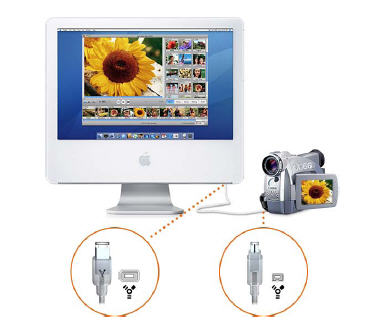
Step 2: Download and install Camcorder video transfer for Mac
iSkysoft Video Converter for Mac can be used as Camcorder video transfer. Launch it, and import your camcorder footage to the program.
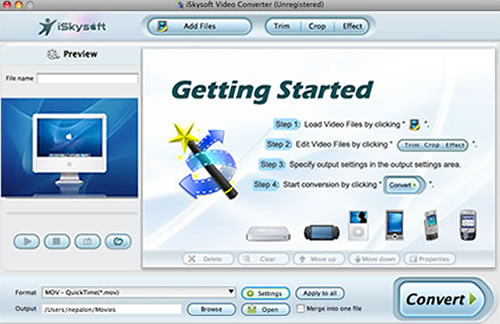
Step 3: Change Camcorder video to MOV, MPEG-4 format.
Define the desired video format and location from the format and output list, then press Convert button to start converting camcorder video to MOV, MPEG-4.
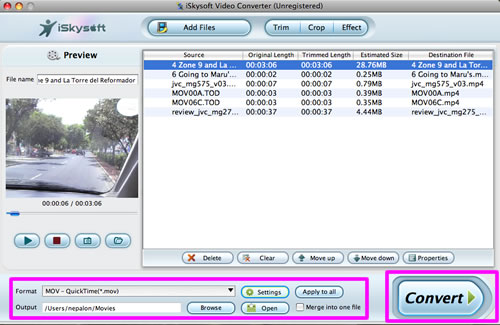
Step 4: Transfer the converted Camcorder video to iMovie.
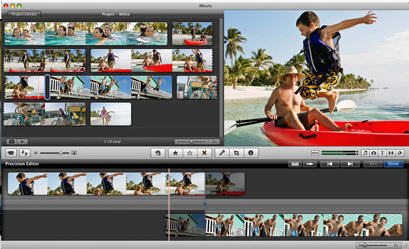
In iMoive, Choose File > Import > Import Movies, and locate and select the file you want to import, then click Import and start editing.
 Processing your request, Please wait....
